All guide pages
Welcome to DesignerXStudio launcher & favouritesSaving & My DesignsTemplatesExporting & printingShortcuts & everyday toolsDesignChiselLithophaneKeychainClickerMesh BoxBeadsMore tools & pagesTroubleshooting & FAQ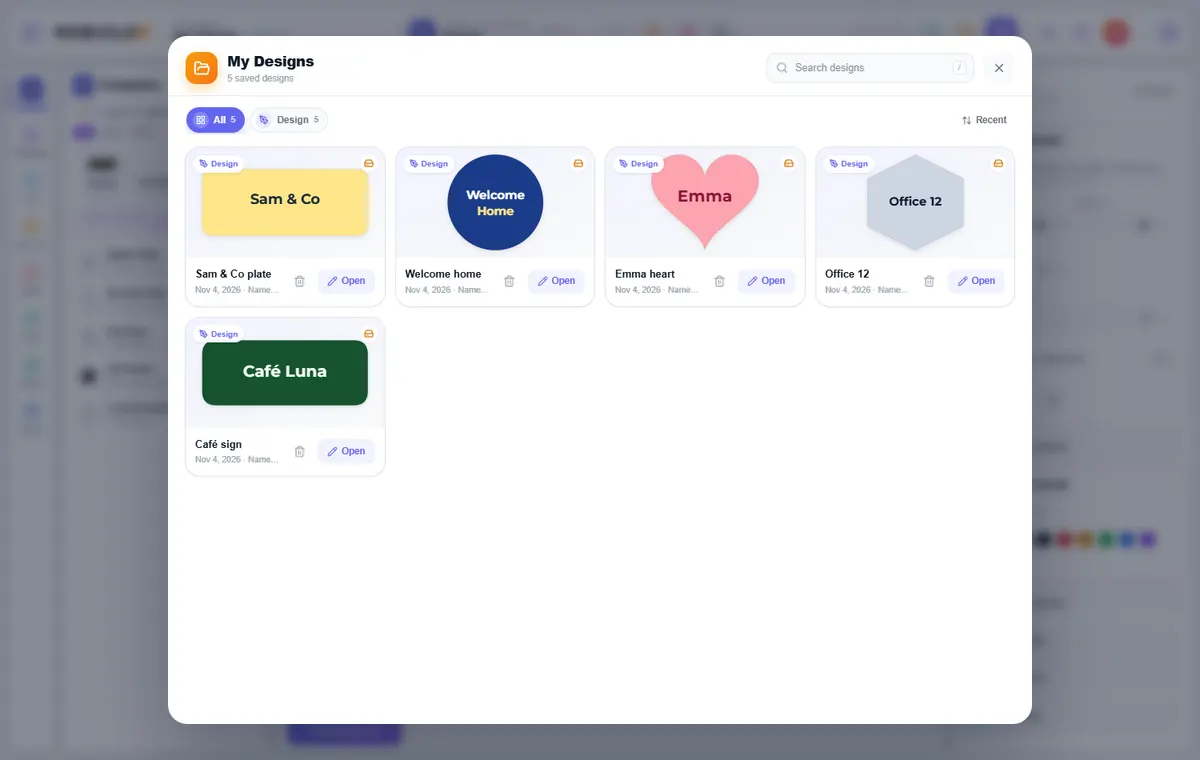
How to use it
- Press Save (or Ctrl/⌘ + S) in the top bar. Name your design by clicking its name at the top.
- Open My Designs (the folder button) to see everything you have saved. Search with /, filter by studio, and sort by recent or A–Z.
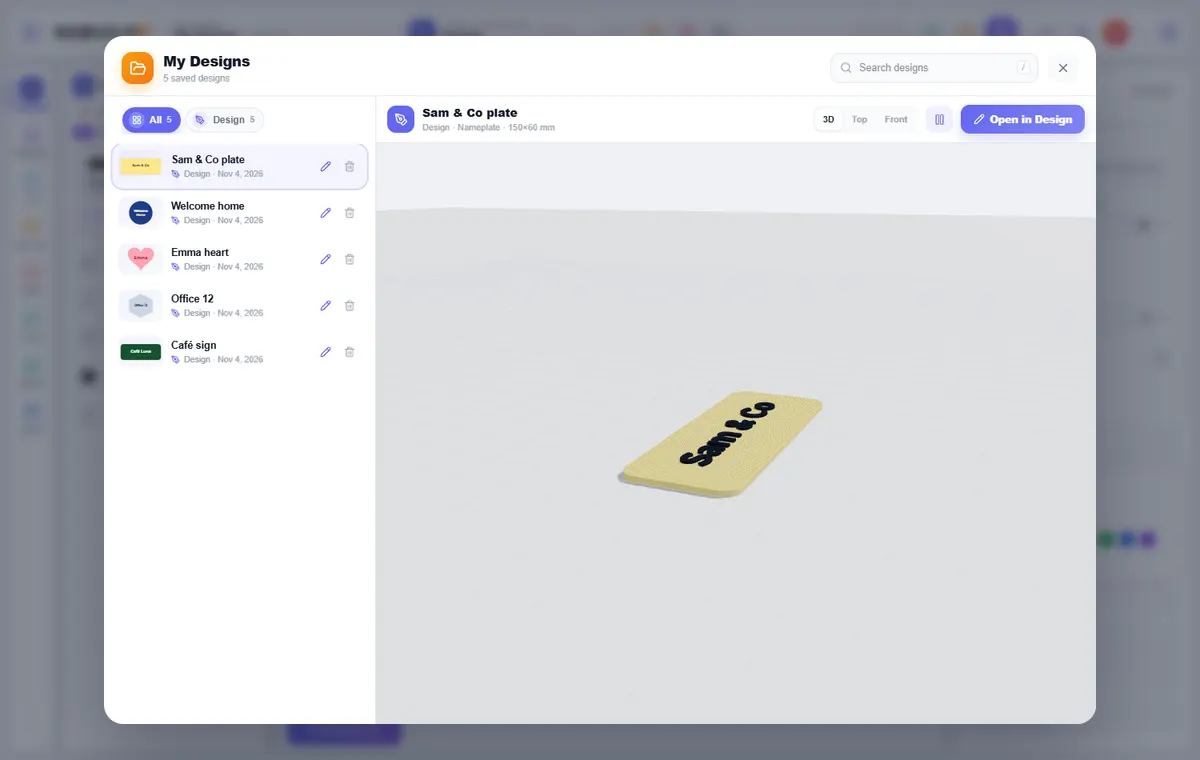
- Click a design to preview it. Open loads it back into its own studio so you can keep editing.
- Use the bin to delete a design — you are asked to confirm.
What you can do
Cloud and device
A cloud icon means the design is saved to your account and follows you to any device. A drive icon means it is saved on this device only (for example if you were offline).
Real previews
Thumbnails and the preview pane are built from the design itself, using the same geometry the studio makes — so they match what you will print.
New design
The + button starts a fresh design in the current studio.
Drafts
The nameplate Design studio keeps a draft on this device as you edit and brings it back next time you visit, so a closed tab does not lose your work. Press Save to put it in My Designs.
Tips
Templates are stored separately and never clutter My Designs.
Try it yourself
DesignerX is free to use in your browser. Create a free account to save your designs.