All guide pages
Welcome to DesignerXStudio launcher & favouritesSaving & My DesignsTemplatesExporting & printingShortcuts & everyday toolsDesignChiselLithophaneKeychainClickerMesh BoxBeadsMore tools & pagesTroubleshooting & FAQDesignerX is a set of design studios. Each studio is built for one kind of thing — nameplates and signs, freehand drawings, photo lamps, keychains, fidget clickers, mesh boxes and letter beads — so you only see the settings that matter for it. Whatever you make, the workflow is the same.
How to use it
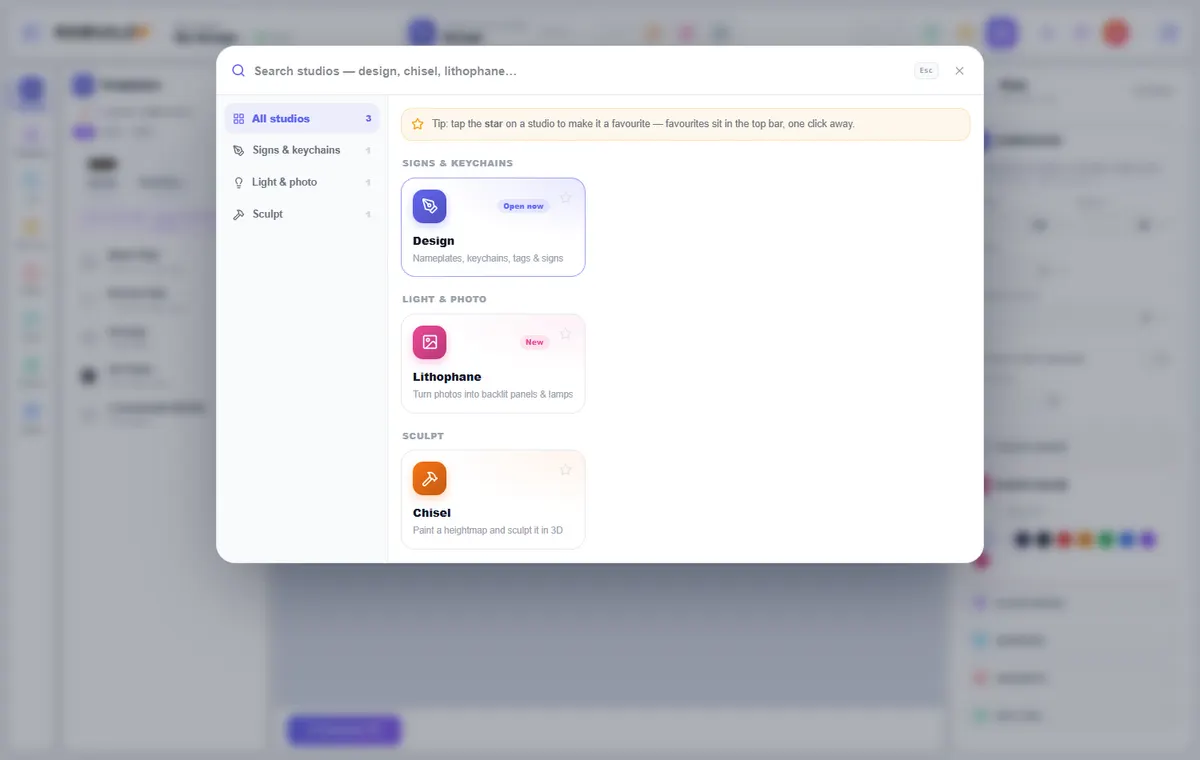
- Pick a studio from the launcher (Ctrl/⌘ + K) or the top bar.
- Add your content: type text, upload an SVG, PNG/JPG or a photo, or pick a built-in shape.
- Adjust the settings on the left and right panels. The 3D preview or canvas updates as you go.
- Press Save so it lands in My Designs, then export an STL or 3MF (or take it to the print studio).
What you can do
Studios
Design, Chisel, Lithophane, Keychain, Clicker, Mesh Box and Beads. Pick one in the list to see how it works.
Content vs settings
Your text, SVG and pictures are the content. Everything else is a setting. Templates save the settings so you can restyle new content in one click.
Nothing floats
The studios check that each model prints in one piece and tie loose parts down for you. Notes appear over the preview when something was changed to make it printable.
Printer friendly
Models are laid out flat on the bed and avoid supports wherever they can. The 3MF keeps each colour as its own part for multi-colour printers.
Tips
In the app, press Esc to close the guide. Open it again any time from the ? button in the top bar — it opens on the studio you are using.
Try it yourself
DesignerX is free to use in your browser. Create a free account to save your designs.