All guide pages
Welcome to DesignerXStudio launcher & favouritesSaving & My DesignsTemplatesExporting & printingShortcuts & everyday toolsDesignChiselLithophaneKeychainClickerMesh BoxBeadsMore tools & pagesTroubleshooting & FAQ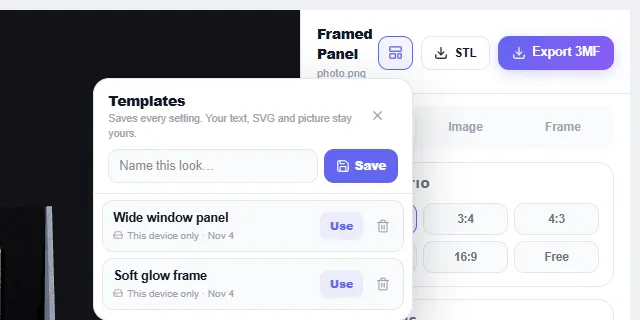
How to use it
- Set the studio up the way you like — sizes, colours, fonts, clearances, finishes.
- Press Templates in the toolbar (or Save current design as template in the nameplate studio), type a name and press Save.
- Later, with any content loaded, press Templates → Use. Every setting changes; your text, SVG, picture and shape stay as they are.
What you can do
Where to find them
Lithophane, Keychain, Clicker, Mesh Box and Beads each have a Templates button. The nameplate Design studio has its own Quick templates panel on the left.
What is saved
All settings. What is never saved: text, uploaded files, pictures, chosen shapes and the design name.
Where it is kept
In your account when you are signed in, with a copy on this device. The list shows which is which. Saving under an existing name replaces it.
Lithophane
Lithophane templates leave out width and height so they never distort a different photo.
Try it yourself
DesignerX is free to use in your browser. Create a free account to save your designs.